You don't need a scanner to turn paper into a clean PDF. Any Android phone with a camera can do it in under a minute, and the result is easier to read than a normal photo. This guide shows the steps, the settings that matter and the small habits that make a scan look professional.
We use Pagefold, our free scanner, in the examples. The tips work with any scanning app.
Why scan instead of taking a photo
A photo of a page keeps everything the camera sees: the table, the shadows and the page at an angle. A scanner app finds the four corners of the page, flattens the perspective so the page looks straight-on, and boosts contrast so text stays crisp. You end up with a PDF that prints well, reads well on a screen, and is accepted by most offices, schools and banks.
What you need
- An Android phone running Android 8.0 or newer with Google Play services
- A scanning app. Pagefold is free and needs no account.
- Decent light and a flat surface
The first time you scan, the phone may download the scanner component from Google Play services, so be online for that first scan.
Step by step
- Open Pagefold and tap Scan a document.
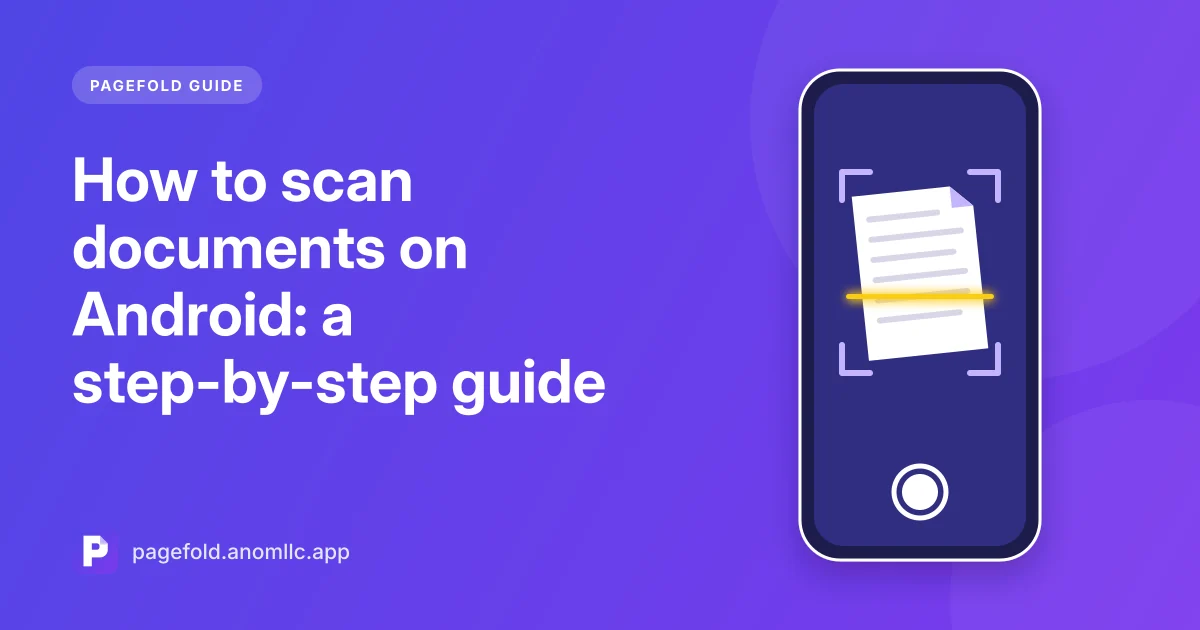
- Point the camera at the page. Hold the phone parallel to the paper. The scanner outlines the page when it finds the edges and captures it.
- Check the result. Use the controls on the review screen to adjust the crop, rotate the page, pick a filter or clean up marks.
- Add more pages if the document has them. Every page goes into the same PDF.
- Save. Pagefold stores the scan on your phone and opens it.
- Export it. Tap Save PDF to choose a folder, such as Downloads or Google Drive, or Share to send it by email or a messaging app.
- Rename it with the pencil icon so you can find it later, for example "Lease 2026" instead of a date.
Tips for a sharp, readable scan
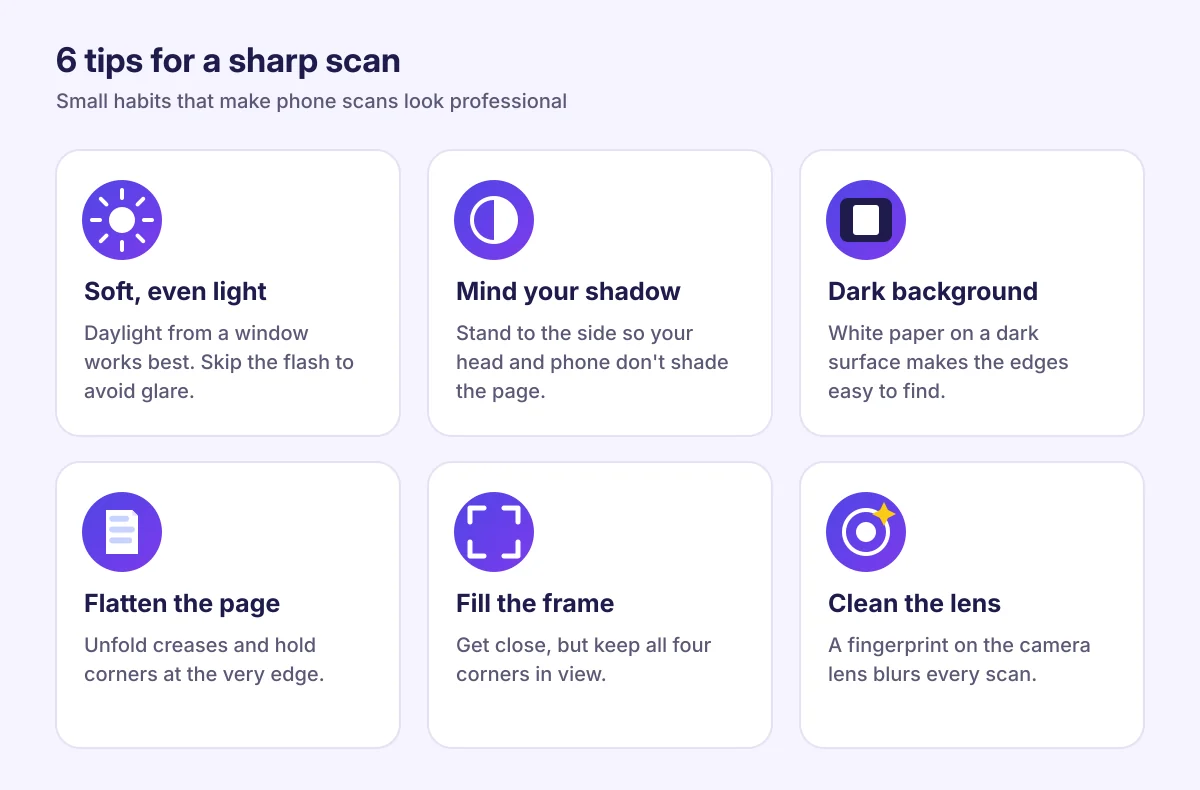
- Use soft, even light. Daylight from a window is ideal. Avoid the phone's flash, which creates a bright glare spot.
- Watch for your own shadow. If you lean over the page, your head and phone cast a shadow. Step to the side or move the light.
- Use a darker background. White paper on a white table makes the edges hard to find. A dark desk, a book cover or a jumper underneath helps a lot.
- Flatten the page. Unfold creases and hold curled corners down with your fingertips away from the text. You can clean up visible fingers in the review screen.
- Fill the frame. Get close enough that the page takes up most of the screen, but keep all four corners visible.
- Wipe the camera lens. A fingerprint on the lens is the most common cause of hazy scans.
Which filter to choose
| Document | Best filter | Why |
|---|---|---|
| Typed letters, contracts, forms | Black and white or high contrast | Smallest files, crispest text |
| Receipts | Black and white | Faint thermal print becomes readable |
| Documents with stamps, signatures or colour charts | Colour | Keeps blue ink and coloured stamps visible |
| Photos, drawings | Colour or original | Keeps the tones |
PDF or images?
Save as PDF when the document has several pages, when you're sending it to an office or school, or when you'll print it. Save pages as images (JPG) when you need to post a single page in a chat or insert it into another document. In Pagefold, images go to Pictures/Pagefold in your gallery via Save images to gallery in the menu.
If something goes wrong
- The edges aren't detected. Put the page on a darker surface and improve the light, or adjust the crop by hand on the review screen.
- The scanner doesn't open. Update Google Play services from the Play Store and make sure you're online for the first scan.
- The file is too big to email. Use the black-and-white filter, which makes much smaller PDFs than colour.