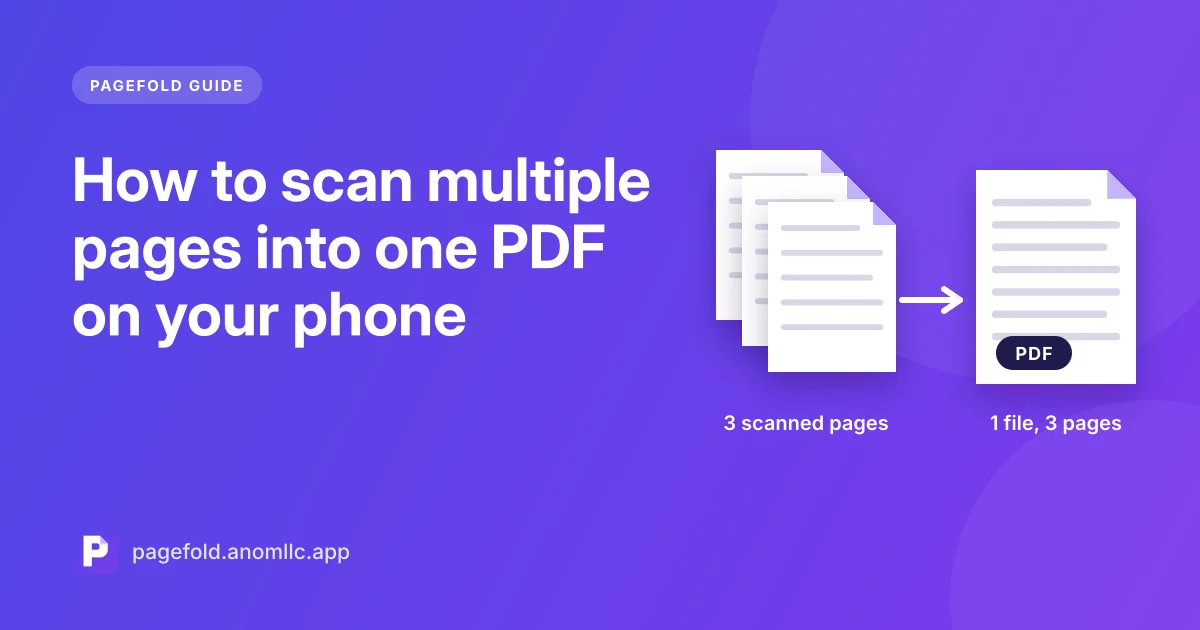
Most documents worth scanning have more than one page: a lease, a medical form, school paperwork, a bank statement. Sending them as ten separate photos is messy. The person receiving them has to download each one and guess the order. One PDF with every page in order is easier for everyone.
Here's how to do it with an Android phone and Pagefold, our free scanner.
Scan all the pages in one go
- Open Pagefold and tap Scan a document.
- Scan the first page. Hold the phone parallel to the paper and let the scanner find the edges.
- On the review screen, choose to add another page and scan page two. Repeat until you reach the last page.
- Check each page. If one is blurry or cut off, retake or delete it before you save.
- Save. All the pages are stored together as one document, and Pagefold makes a single PDF from them.
- Tap Save PDF to put it in a folder, or Share to send it.
Pagefold can't add pages to a scan after it has been saved yet. Scan the whole document in one session, and keep the pages in order in a pile next to you as you go.
Get the order right the first time
- Lay out the pages first. Put them face up in a stack, page one on top, and move each page to a second pile as you scan it.
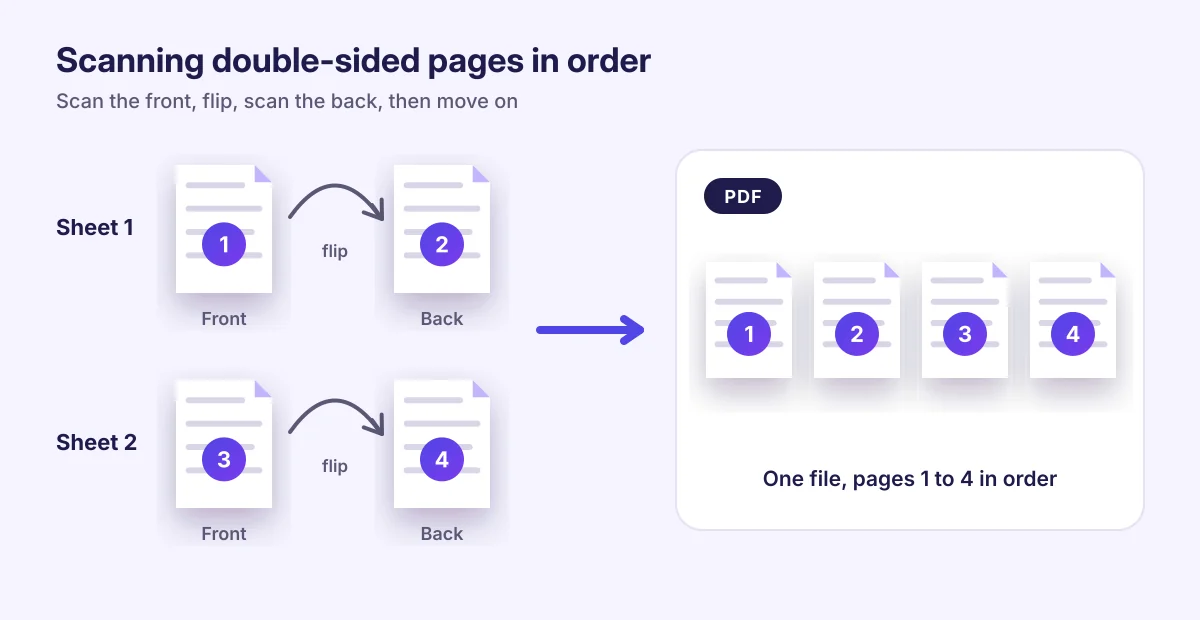
- Double-sided pages: scan the front, flip the sheet, scan the back, then move to the next sheet. Your PDF then reads 1, 2, 3, 4 like the original.
- Booklets and stapled pages: remove the staple if you can. If not, press the open page flat with one hand and keep your fingers on the margins.
- Books: scan one page at a time rather than the full spread. You get straighter pages and larger text.
Mixing scans and photos
If some pages are already photos in your gallery, for example a page someone sent you, use the scanner's import from gallery option. The photos go through the same edge detection and cleanup, and become pages in the same PDF.
Keep the file small enough to send
Many email services limit attachments to around 20 to 25 MB, and some online forms accept much less. To keep a long document small:
- Use the black-and-white filter for text-only pages. It produces far smaller files than colour.
- Keep colour only for pages that need it, such as stamps, photos or coloured charts.
- Don't scan blank backs of single-sided pages.
Name it so you can find it again
Pagefold names each scan with the date and time. Tap the pencil icon and give it a clear name, such as "Car insurance 2026" or "Visa application – passport pages". The name is also the file name when you save or share the PDF.
Pagefold also reads the text in every page, so you can find a document later by searching for a word inside it, like a policy number or a person's name. Read more in how to copy and search text from a scan.
Common questions
Is there a page limit? Pagefold doesn't set one. Very long documents take longer to process, so for a full book consider splitting it into chapters.
Can I reorder pages after saving? Not yet. Scan in order, or retake pages before you save.
Can I scan pages from different places into one PDF? Yes, as long as you add them in the same session. Scan some pages with the camera and import others from your gallery.
New to scanning? Start with how to scan documents on Android.