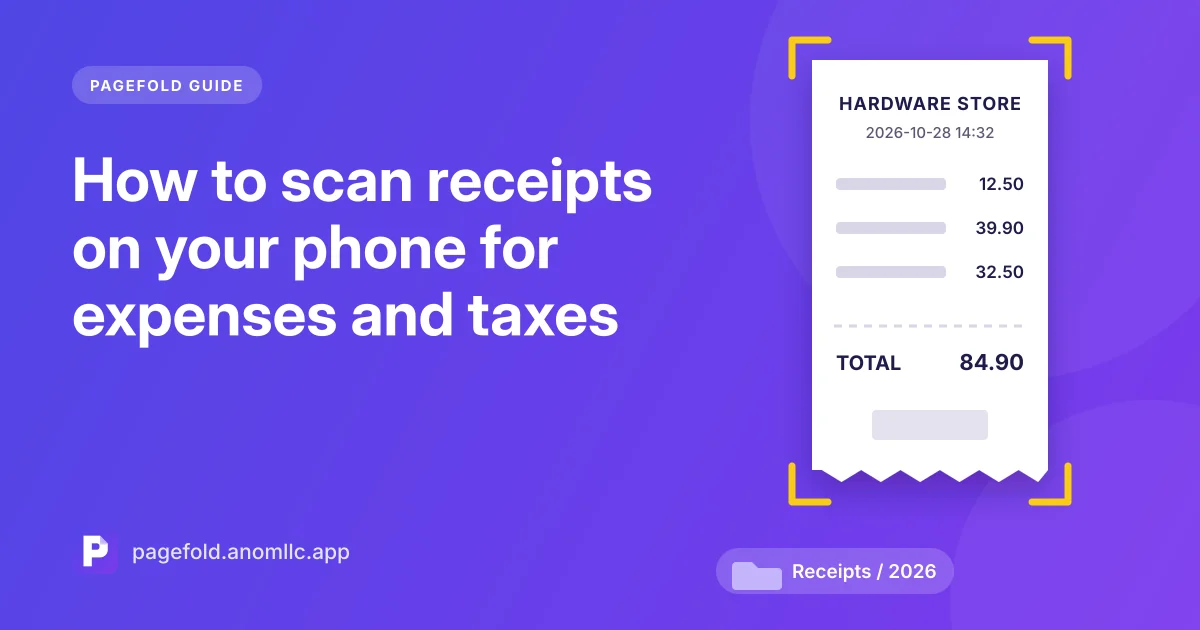
Shop receipts are usually printed on thermal paper, and the print fades with heat, light and time. Some are unreadable within months. If you need receipts for expense reports, warranties, returns or your tax return, a scan is the copy that lasts.
This guide shows a simple routine for scanning receipts on Android with Pagefold, our free scanner, and filing them so you can find any one in seconds.
Scan a receipt in under a minute
- Put the receipt on a dark surface. Receipts are white and thin, and a dark background helps the scanner find the edges.
- Open Pagefold and tap Scan.
- Flatten curled ends with your fingertips at the edges, away from the print.
- Let the scanner capture it, then choose the black-and-white filter. It makes faint thermal print much easier to read.
- Save, then tap the pencil icon to rename it.
Long receipts: if a receipt doesn't fit on screen at a readable size, scan it in two or three overlapping parts as separate pages of the same scan.
A naming pattern that makes receipts easy to find
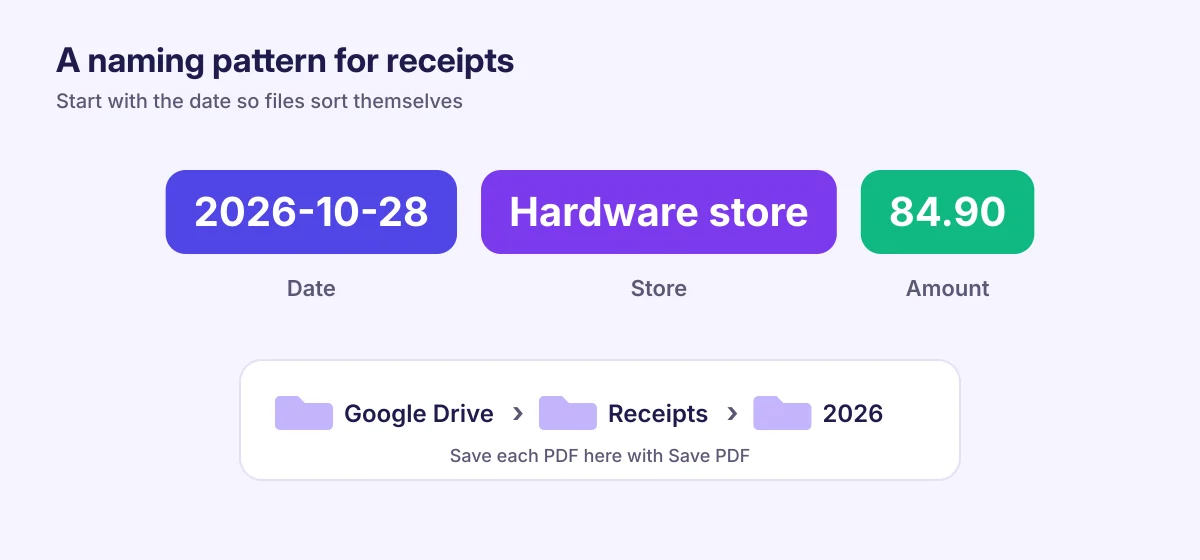
Use the same pattern every time, starting with the date:
2026-10-28 Hardware store 84.90
Starting with the year, month and day keeps receipts in date order wherever you save them. Adding the store and the amount means you can tell receipts apart without opening them.
Find any receipt later by searching
Pagefold reads the text on every receipt. Even if you forget to rename one, you can search for the store's name, a product or an amount on the main screen, and the matching receipts appear. See how text recognition works for tips and its limits. Always check numbers you copy from a receipt.
One receipt per scan, or one PDF per month?
| Approach | Best for |
|---|---|
| One receipt per scan | Warranties, returns, and expense claims where each receipt is submitted on its own |
| One PDF per trip or month | Business trips and monthly expense reports, where you send everything at once |
For a monthly PDF, keep the month's receipts in an envelope and scan them together, one receipt per page. See how to scan multiple pages into one PDF.
Save a copy somewhere safe
Pagefold keeps scans on your phone, which is private but not a backup. For receipts you must keep, also save the PDF somewhere else:
- Open the receipt and tap Save PDF.
- Pick a folder in Google Drive or another storage app, such as Receipts / 2026.
When you need to send receipts to your accountant or employer, tap Share and choose email or a messaging app.
Keep the original or not?
Rules about digital copies of receipts depend on your country and on what the receipt is for. Some tax authorities and employers accept scans, and some still ask for paper originals or have rules about how long to keep records. Check with your tax authority, accountant or finance team before throwing originals away.
Quick checklist
- Scan receipts the day you get them, before they fade
- Dark background, black-and-white filter
- Rename: date, store, amount
- Save the PDF to a backed-up folder
- Check the rules before discarding paper originals
New to scanning? Start with how to scan documents on Android.